> For the complete documentation index, see [llms.txt](https://kb.bevica.com/llms.txt). Markdown versions of documentation pages are available by appending `.md` to page URLs; this page is available as [Markdown](https://kb.bevica.com/documentation/guides/items-and-inventory/item_availability_overview.md).
# Item Availability Overview
Check item availability across locations, reservations, and inbound/outbound documents.
Bevica can help you manage your stock, how much you have and where it is. Additionally, the **Item Availability** factbox and **Availability By...** pages help you see the impact of receipts and despatches on fluctuating stock levels - when you might be overstocked or out of stock. **Reservations** make sure you can allocate current or future stock to your customers.
{% hint style="warning" %}
**Prerequisites**
Inventory, Purchase and Sales setup.
{% endhint %}
### Item Availability factbox
Found throughout Bevica wherever the item number exists, the factbox gives you a quick summary of that item stock position. The factbox displays information against an **Item No.**, displays figures represented in the displayed **Unit of Measure** and filtered to the details listed in the **Filters** section.
| Field | Purpose | Note |
| ---------------------------- | ---------------------------------------------------------------------------------------- | ---------------------------------------------------------------------------------------------------------------------------------------------------------- |
| Open Inventory | Shows how much receipted stock the company owns. | This figure is calculated from Item Ledger Entry Remaining Quantity value. It excludes paid reserves. |
| Inventory (Paid Reserve) | Displays the quantity held in Paid Reserve. | This stock is hard allocated against customers. See Private Reserve articles. |
| Available Inventory | This shows how much available stock there is now. | Clicking the figure opens the Item Availability by Event page where you can see how the figure was reached. |
| Projected Inventory | This looks forward to see your closing inventory position given all documents in Bevica. | Clicking the figure opens the Item Availability by Event page where you can see how the figure was reached. |
| | | |
| **Requirement fields** | | |
| Qty. on Sales Order | Displays all sales line details for the particular item and filter. | Clicking the figures displays the relevant document lines. |
| Qty. on Blanket Sales Order | Displays how many outstanding units of this item are on blanket sales order lines. | Clicking the figure displays the sales line page filtered on blanket order lines for this items. |
| Qty. on Transfer Order | Displays all shipment transfer line details for the particular item and filter. | Clicking the figures displays the relevant document lines. |
| Qty. on Assembly Lines | Displays assembly line consumption details for the particular item and filter. | Clicking the figures displays the relevant document lines. |
| Qty. on Other Demand | Displays demand quantities for a number of document types. | Clicking the figure opens a dialogue box with further information. Most notably, Qty. on Job Order (quantities on Paid Reserve) and Qty. on Purch. Return. |
| | | |
| **Receipt fields** | | |
| Qty. on Purch. Order | Displays all purchase line details. | Clicking the figures displays the relevant document lines. |
| Qty. on Blanket Purch. Order | Displays how many outstanding units of this item are on blanket purchase order lines. | Clicking the figure displays the purchase line page filtered on blanket order lines for this items. |
| Qty. on Transfer Order | Displays all receipt transfer line details for the particular item and filter. | Clicking the figures displays the relevant document lines. |
| Qty. on Assembly Order | Displays assembly line output details. | Clicking the figures displays the relevant document lines. |
| Qty. on Other Supply | Displays supply quantities for a number of document types. | Clicking the figure opens a dialogue box with further information, most notably, Qty. in Transit and Qty. on Sales Return. |
{% hint style="success" %}
The factbox ribbon has links to further availability pages.
{% endhint %}
### Availability By...
Bevica can display item availability in a number of different ways. They all revolve around stock held in inventory (**Item Ledger Entries**) and then demand/supply governed by details held on document lines.
* Event (Document)
* Location
* Variant
* Unit of Measure
* Date
Different documents use different dates to calculate availability over time.
| Document | Type | Date used |
| -------------------------- | --------------- | ------------------------------------------------------------------------------------------------------ |
| Sales Order Line | Demand | Shipment Date |
| Sales Return Order Line | Supply | Shipment Date |
| Purchase Order Line | Supply | Expected Receipt Date |
| Purchase Return Order Line | Demand | Expected Receipt Date |
| Transfer Line | Demand / Supply | Shipment Date and Receipt Date. In the period between these two dates stock is considered unavailable. |
| Assembly Order Header | Supply | Due Date |
| Assembly Order Line | Demand | Due Date |
The following Availability pages exist: **Event, Period, Variant, Location, BOM Level** and **Unit of Measure** accessible from the Item Card/List, Item Availability factbox and document 'Lines' fasttabs.
See [View the Availability of Items](https://docs.microsoft.com/en-gb/dynamics365/business-central/inventory-how-availability-overview) for more detailed information from Microsoft.
### [Item Moving Annual Totals Sales Analysis](/documentation/reporting-and-analytics/reporting_in_bevica_-_overview/moving_annual_total_sales_analysis_-mat.md)
This page, as well as showing sales over the previous 12 months by item, displays **Availability**, **Qty. on Sales Order** and **Qty. on Purchase Order**.
### Reservations
Refer to this article: [Bevica Reservations & Auto Reservations](/documentation/guides/sales/bevica_reservations.md)
In addition to availability looking at gross quantities on stock and on documents, Reservations can be used to hard allocate a quantity of stock (Item Ledger or supply) against a required demand.
To place a reservation against a quantity of stock requested by a Customer do the following:
* Create a Sales Order against the customer, making sure **Duty Status**, **Location Code** and **Shipment Date** are populated.
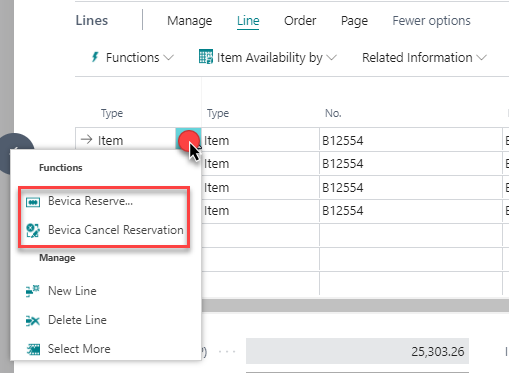
* Once the sales line is populated with a quantity, click **Assist Edit** to the right of the Type field (three vertical dots) and select **Bevica Reserve.**
You can also access this through the Line > Functions ribbon above the Sales Lines.
* The dialogue box that appears, **Bevica Reservation Selection** displays all the related records that the sales line can be reserved against. This is, most typically **Item Ledger Entries** and **Purchase lines**.
{% hint style="info" %}
For Purchase order lines to appear, the **Expected Receipt Date** on purchase order lines must be before the **Shipment Date** on the sales order. i.e. Bevica is expecting to have receipted the goods before you need to ship the sales line.
{% endhint %}
* A sales line can only be reserved against one supply line. Where the quantity on the sales line exceeds the quantity on the selected supply line Bevica will create an additional sales line for the remaining quantity.
* Reservations are also used where you want to allocate a specific **Rotation No.** to a sales line.
{% hint style="success" %}
Where a sales line reservation is made against a purchase line, when that purchase line is receipted Bevica will automatically transfer the reservation to the newly created Item Ledger Entry.
{% endhint %}
---
# Agent Instructions
This documentation is published with GitBook. GitBook is the documentation platform designed so that both humans and AI agents can read, navigate, and reason over technical content effectively. Learn more at gitbook.com.
## Querying This Documentation
If you need additional information that is not directly available in this page, you can query the documentation dynamically by asking a question.
Perform an HTTP GET request on the current page URL with the `ask` query parameter, and the optional `goal` query parameter:
```
GET https://kb.bevica.com/documentation/guides/items-and-inventory/item_availability_overview.md?ask=&goal=
```
`ask` is the immediate question: it should be specific, self-contained, and written in natural language.
`goal` is optional and describes the broader end goal you are ultimately trying to accomplish on behalf of the user. GitBook uses it to tailor the answer towards what is most useful for that goal.
The response will contain a direct answer to the question and relevant excerpts and sources from the documentation.
Use this mechanism when the answer is not explicitly present in the current page, you need clarification or additional context, or you want to retrieve related documentation sections.