> For the complete documentation index, see [llms.txt](https://kb.bevica.com/llms.txt). Markdown versions of documentation pages are available by appending `.md` to page URLs; this page is available as [Markdown](https://kb.bevica.com/bevica-select/opening-balances-inventory/bevica_select_-_inventory_opening_balances_template.md).

# Inventory Opening Balances Template

### Before you start

* Understanding the Configuration Worksheet: [Configuration Worksheet](/bevica-select/bevica_select_training/bevica_select_-_excel_template_data_migration.md#configuration-worksheet).
* Understanding Excel templates: [Excel Template Data Migration](/bevica-select/bevica_select_training/bevica_select_-_excel_template_data_migration.md#excel-template-data-migration).
* You have prepared your data as per [Bevica Select - Finance Data Migration Overview](/bevica-select/opening-balances-inventory/bevica_select_-_finance_data_migration_overview.md).
* Understanding how Sales Prices work. See [Sales Prices and Discounting - New Pricing Experience](/documentation/guides/pricing-costs-and-charges/sales_and_purchase_price_lists_-_new_pricing_experience.md).
* Item must exist.
* Inventory Posting Setup must be setup.

{% hint style="danger" %}
Paid Reserves are imported using a different process.
{% endhint %}

### Prepare your data

Preparation of the data to be migrated is key. In addition to the data preparation list in [Bevica Select - Finance Data Migration Overview](/bevica-select/opening-balances-inventory/bevica_select_-_finance_data_migration_overview.md), you need to:

* Have agreed internally how to establish a cost for each line stock line
* Have agreed internally how to establish the correct quantity for each line being receipted

You will need to establish an inventory cost and quantity per:

`Item` / `Location` / `Variant` (Duty Status) / `Unit of Measure` (& optionally `Rotation No.` )

### General posting setup

There is a special data migration General Ledger Account called **Data Migration - Inventory Suspense** (G/L Account No. **ZZ9950**).

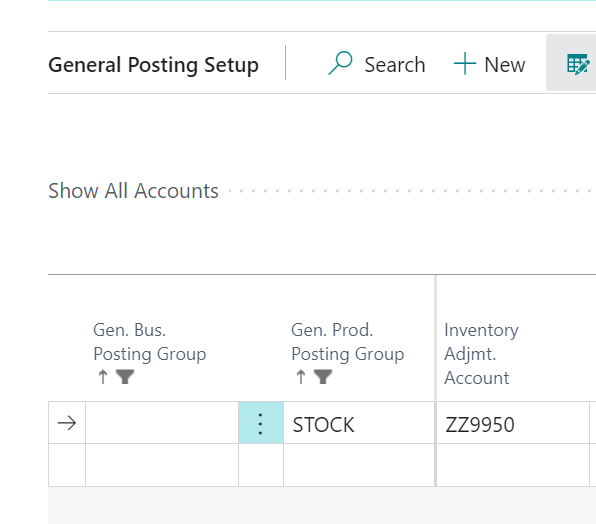
When posting the Item Journal, the Balance Sheet 'stock' account will come from the **Inventory Posting Setup.** The Income Statement balancing entry will come from the **General Posting Setup** using a blank General Business Posting Group and the General Product Posting Group from the Item(s). For posting this migration journal the **Inventory Adjustment Account** for this combination should be temporarily changed to the suspense G/L account ZZ9950.

<div align="center"><img src="https://2760122862-files.gitbook.io/~/files/v0/b/gitbook-x-prod.appspot.com/o/spaces%2Fx3XuahSies5HnodsWowA%2Fuploads%2Fgit-blob-a5d638183a09389d4fa86ed2894fbb7abf54c7d3%2FvAlG4cqoGbnYuQgv8W_uLv5kGeGXItIO-g.png?alt=media" alt="General Posting Setup page showing the Inventory Adjustment Account temporarily set to ZZ9950 (Data Migration - Inventory Suspense) for opening inventory posting." width="447"></div>

When you bring over your opening balances for the General Ledger later, then you will migrate your 'stock' value into this suspense account which should net to 0. See [Bevica Select - Trial Balance Opening Balances Template](/bevica-select/opening-balances-inventory/bevica_select_-_trial_balance_opening_balances_template.md)

{% hint style="danger" %}
Remember to switch the **Inventory Adjustment Account** back to **7170** once the opening inventory has been posted and reconciled.
{% endhint %}

{% hint style="info" %}
We recommend disabling Sales Line Worksheet features while any large item related bulk processes are being run, i.e. creating items, importing balances. Navigate to Bevica Setup, Sales Line Worksheet fasttab, **Enable Sales Line Worksheet**. Once any processes have been completed return to Bevica Setup, enable **Enable Sales Line Worksheet** and run the **Populate Sales Line Worksheet** routine.
{% endhint %}

### Inventory open items template

The template is a pre-formatted spreadsheet with the fields you need to create your opening inventory balances within Bevica.

The template has the following fields:

<table><thead><tr><th width="142">Field ID</th><th width="188">Related Table</th><th width="137">FieldType</th><th>Note</th></tr></thead><tbody><tr><td>1 <code>Journal Template Name</code></td><td>(82) Item Journal Template</td><td>Code 20 (Mandatory)</td><td>Set to ITEM. Any value entered here must already exist in its related table.</td></tr><tr><td>41 <code>Journal Batch Name</code></td><td>(233) Item Journal Batch</td><td>Code 20 (Mandatory)</td><td>Set to Z_DATA MIG. Any value entered here must already exist in its related table.</td></tr><tr><td>2 <code>Line No.</code></td><td></td><td>Integer (Mandatory)</td><td>See note at end.</td></tr><tr><td>5 <code>Entry Type</code></td><td></td><td>Option (Mandatory)</td><td>Set to Positive Adjmt. Note that the full stop needs to be included.</td></tr><tr><td>6 <code>Document No.</code></td><td></td><td>Code 20 (Mandatory)</td><td>See note at end.</td></tr><tr><td>3 <code>Item No.</code></td><td>(27) Item</td><td>Code 20 (Mandatory)</td><td>Any value entered here must already exist in its related table.</td></tr><tr><td>4 <code>Posting Date</code></td><td></td><td>Date (Mandatory)</td><td>Enter a date here, typically the day before the go-live date.</td></tr><tr><td>9 <code>Location Code</code></td><td>(14) Location</td><td>Code 10 (Mandatory)</td><td>Any value entered here must already exist in its related table.</td></tr><tr><td>5402 <code>Variant Code</code></td><td>(5401) Item Variant</td><td>Code 10 (Mandatory)</td><td>See note at end.</td></tr><tr><td>13 <code>Quantity</code></td><td></td><td>Integer (Mandatory)</td><td>Enter a quantity (no decimal places) in the unit of measure.</td></tr><tr><td>5407 <code>Unit of Measure Code</code></td><td>(5404) Item Unit of Measure</td><td>Code 10 (Mandatory)</td><td>Relates to the quantity field above. Any value entered here must already exist in its related table.</td></tr><tr><td>16 <code>Unit Amount</code></td><td></td><td>Decimal (Mandatory)</td><td>See note at end.</td></tr><tr><td>60 <code>Document Date</code></td><td></td><td>Date</td><td>Enter a date here, typically the day before the go-live date.</td></tr><tr><td>70560 <code>TVT Rotation No.</code></td><td></td><td>Code 50</td><td>Enter a Rotation No. / Lot No. reference if necessary.</td></tr><tr><td>70562 <code>TVT Rotation Ref.</code></td><td></td><td>Code 50</td><td>TVT Rotation No. is mandatory if a value is entered here.</td></tr></tbody></table>

`Line No.` Must be a unique number per line. Line numbers normally start with 10000 and increment by 10000.

`Document No.` Enter a reference that means something to your company. This may be used later to reconcile this line to a legacy system.

`Variant Code` For duty controlled items enter either DUTY FREE or DUTY PAID, otherwise can be left blank. Any value entered here must already exist in its related table.

`Unit Amount` Enter the cost for one unit of the unit of measure. e.g. £10.00 / 75cl or £60.00 / 6x75cl. **This is in the base currency of your Bevica company, not the currency you bought the stock in.**

### Upload the journal

Once the template has been applied, navigate to the Item Journal batch and check that the journal holds the same information as the data migration template used.

* Ensure all columns you have imported data into are visible.
* Have all the lines been imported?
* Select a number of lines at random, are they all correct and **Line Amount** calculated correctly.
* Export the journal lines to Excel and make sure the total quantities and cost amounts are what you expect.

### Post the journal

Before posting any opening balances, it is a good idea to copy the company as a backup, so you have a point to return to if there are problems once the **Item Journal** has been posted. See [Bevica Select - Creating new Bevica companies](/bevica-select/bevica-select-data-migration/bevica_select_-_creating_new_bevica_companies.md) for information on how to do this.

### Reconcile

Once **Posted**, the entries need to be reconciled with the values from your old system and Bevica. The following should be checked:

* Quantity by Item (by Location, Variant, Unit of Measure)
* Value by Item (by Location, Variant, Unit of Measure)
* General Ledger 'Stock' balance on ZZ9950 and 2120.

Another trusted user, rather than the person who created and posted the opening balance, should perform these checks. They should do this using their own data source from your previous system and not rely on the migration files you used in case there were errors on those.


---

# Agent Instructions
This documentation is published with GitBook. GitBook is the documentation platform designed so that both humans and AI agents can read, navigate, and reason over technical content effectively. Learn more at gitbook.com.

## Querying This Documentation
If you need additional information that is not directly available in this page, you can query the documentation dynamically by asking a question.

Perform an HTTP GET request on the current page URL with the `ask` query parameter, and the optional `goal` query parameter:

```
GET https://kb.bevica.com/bevica-select/opening-balances-inventory/bevica_select_-_inventory_opening_balances_template.md?ask=<question>&goal=<endgoal>
```

`ask` is the immediate question: it should be specific, self-contained, and written in natural language.
`goal` is optional and describes the broader end goal you are ultimately trying to accomplish on behalf of the user. GitBook uses it to tailor the answer towards what is most useful for that goal.

The response will contain a direct answer to the question and relevant excerpts and sources from the documentation.

Use this mechanism when the answer is not explicitly present in the current page, you need clarification or additional context, or you want to retrieve related documentation sections.